Hello & welcome to the return of 'How to Fridays'.
Today I will run through how to claim your business 'place' on
Facebook Places. In brief, Facebook places allows people to 'check in' to a place to let everyonw know where they are. It is not being used (in the UK) to it's full advantage at the moment, so it's an ideal time for you to get to grips with it and set up your business while it's still relatively new. I won't go into the details of what it is, as the link above will give you a fairly good idea.
Why should you set up your business?
At the moment if your business isn't listed, people can check in and add any description they want, so the sooner you put your details in the easier it is for people plus you have some control over the place name. Everytime someone checks in it displays this on their Facebook profile, getting more visibility for your business. Plus if you are able to offer a special offer (10% off your order on first check-in, or free coffee for 3 check-ins in a week, for example) this can help spread the word and generate more business.
So how do you do it?
I'll post steps over a few weeks otherwise this will be a loooong post! So Part 1 is 'Checking In'.
Step 1 : Check in to your own business
You cannot do this via the main Facebook.com website, so you need to have either the
Facebook for iPhone App or visit touch.facebook.com site on a mobile device.
For this post I'll be using the Facebook for iPhone App, but the instructions are similar for the mobile site, the main difference is that you'll need to click the Places link or the little 'Check In' button to the right of the status update text box to get started. See screen shot below.
 |
| touch.facebook.com Screen Shot |
Check In on Facebook Places using the iPhone App
Open up the app and you'll see your Facebook news feed similar to below:
 |
| Facebook for iPhone : News Feed |
|
Click on 'Check In'and you'll be presented with a list of Nearby Places:
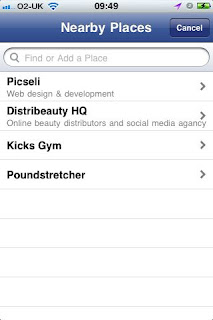 |
| Facebook for iPhone : Nearby Places |
If your business isn't displayed start typing in the 'Find or Add a Place' text box. If it still doesn't come up you'll see a link similar to Add "Your Business Name" as in the screen shot below. Here we are adding our parent company - Business Systems Services (UK) Ltd.
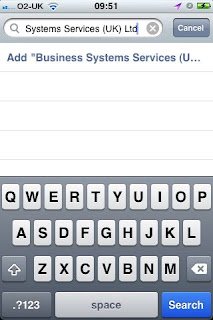 |
| Facebook for iPhone : Add your Business |
Click the link and you'll be presented with a map, your business name & place to enter a description. Check that the map is correct, your business name is as you want it and enter a description, then click Add.
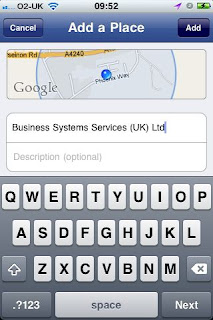 |
| Facebook for iPhone : Add a Place |
You'll then get a message to say it's been added and reminding you to 'Check In'.
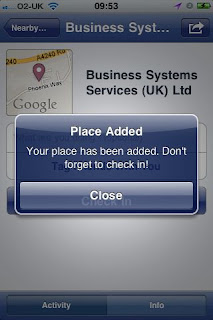 |
| Facebook for iPhone : Place Added |
Close this message and you can then enter a status, such as 'In work', you can tag any friends that are with you (Just click on the link and it will display a list of your friends for you to select) and then Check In.
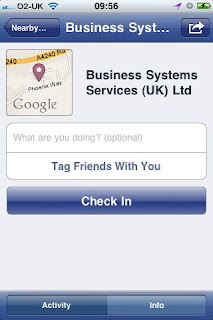 |
| Facebook for iPhone : Check In |
Click Done and your Check In will display in the news feed of all your friends.
 |
| Facebook for iPhone : |
Come back next week to find out how to claim your business.


